An inventory of everything your organization runs

Asset types you define

An asset is one thing you manage — an application, a team, a data store, a business capability. Every asset belongs to an asset type, and the type decides what fields it has and what it can be related to.

A new workspace starts with a ready-made catalogue grouped three ways — business, applications and data, technology and operations — and you choose which of it to catalogue. The templates are a starting point, not a fixed schema: add a type later, or create your own when nothing offered fits.

Fields are typed. A choice field becomes a facet you can filter by and sorts in its own order — a risk rating sorts Extreme, High, Medium, Low — and any field you add appears in the grid, the detail panel, filters and exports.

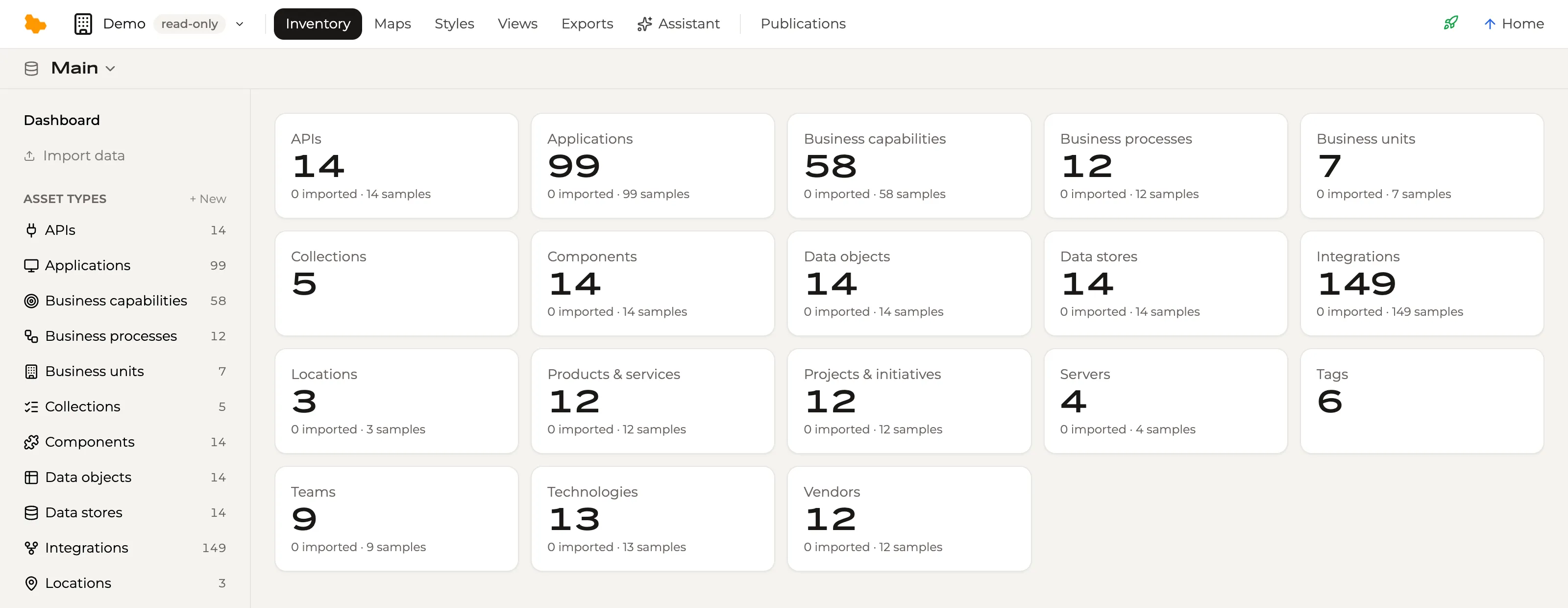
The Inventory dashboard of the demo workspace: a card per asset type — APIs, applications, business capabilities, data stores, integrations, teams, vendors and more — each with its count.

The inventory is flexible underneath and opinionated on top: asset types, fields and relations are yours to define, and the AI proposes them from your own data.

Bring what you have

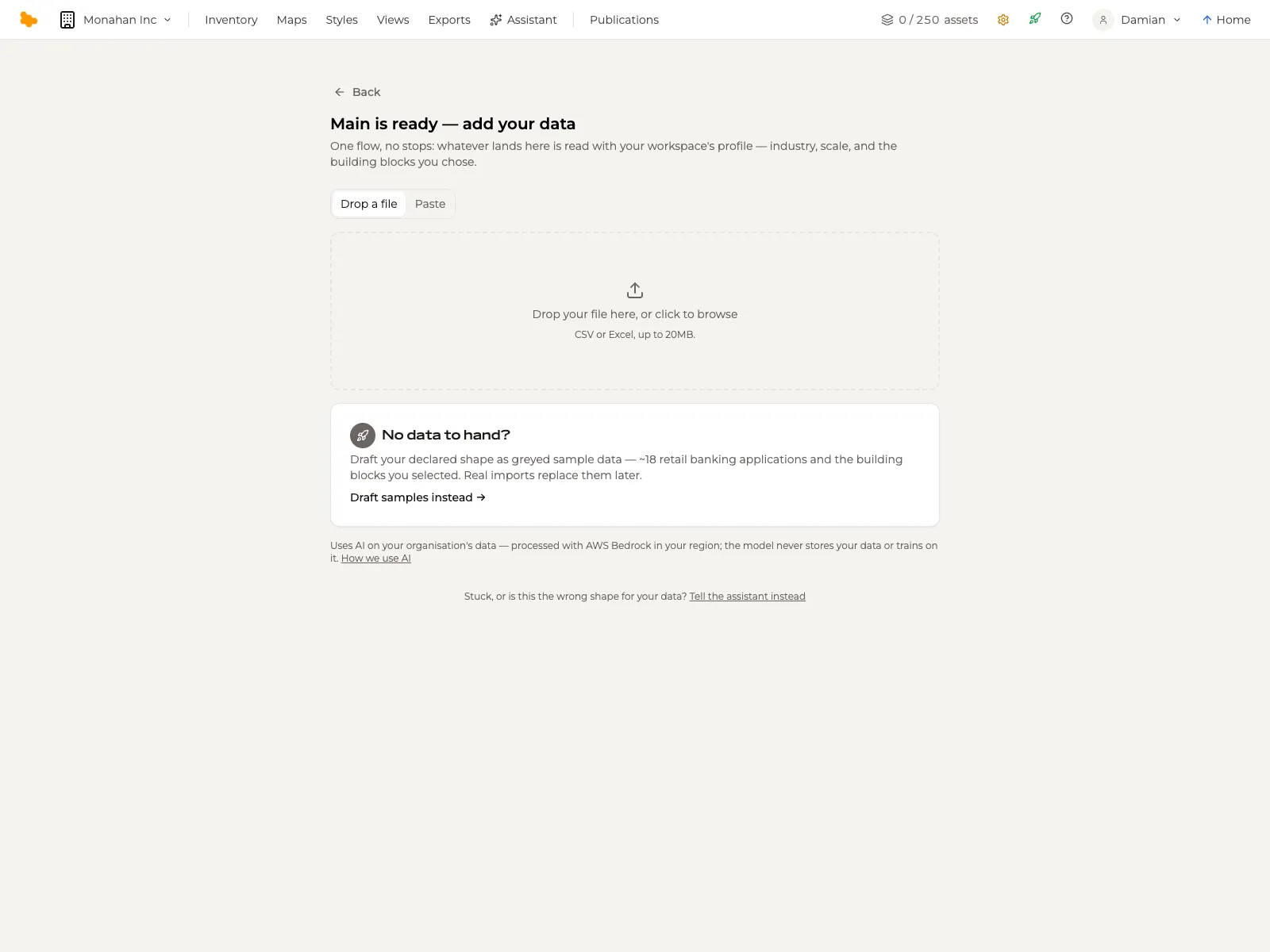
Drop a CSV or Excel workbook — several sheets are fine — or paste tabular text straight out of a spreadsheet. Whatever lands is read against your workspace's profile, the industry and scale you set when you created it.

No template to fill in first and no column-mapping screen. The AI proposes the asset types, fields, relations and the assets themselves.

  • A CSV or Excel file, up to 20 MB
  • A paste from a spreadsheet
  • Sample data drafted for your industry, when you have nothing to hand

Start with whatever you have. The map that comes out of it is what drives the data to improve.

The Import screen of a new workspace: drop a file, paste, or draft samples instead.

Review before anything is written

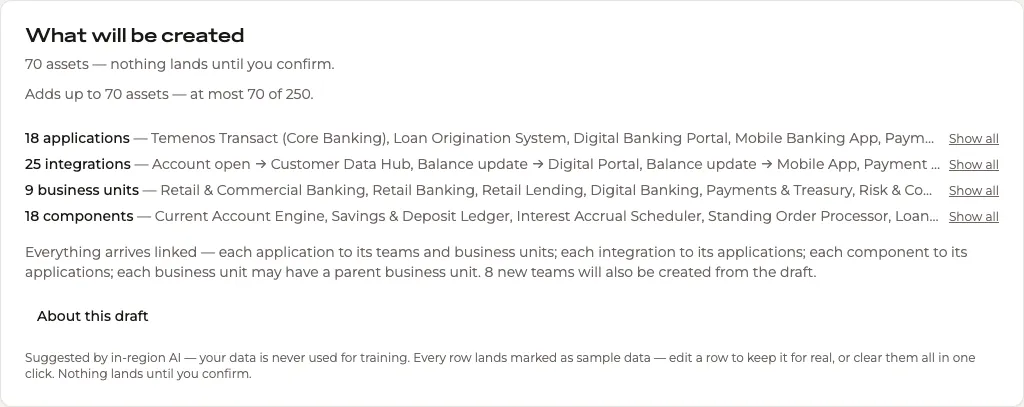
When the proposal is ready, What will be created summarises it: a count per asset type, each expandable to every name Aplas intends to create; a plain-language statement of how the assets will be linked; and the assumptions the draft used, each labelled with where it came from.

Confirm it and the assets are created. Change an assumption and re-draft. Nothing reaches the inventory until you say so.

What will be created: a count per asset type, each expandable, above a statement of how the assets will be linked.

A grid built for real work

Once the data is in: sortable columns, typed filters, a facet rail, bulk edits, and a column picker that knows every field of the type. A saved set of filters and columns is itself a view, and any table exports to Excel exactly as shown.

Workspaces organize the estate — a production inventory and a staging copy, or one per division — and a recent-changes feed names who changed what and when.

The inventory grid for Applications, filtered to large map size: columns for status, risk rating, business criticality, functional fit and technical suitability.

Relations make it navigable

Relations are typed, and any asset type can relate to any other: an application is owned by a team, realizes a capability, runs on a technology, consumes an API. Each relationship type carries a name for either direction and a colour of its own.

A connection can also be an asset in its own right — an integration, a feed, a sync job — with fields, an owner and a lifecycle, connecting one or more sources to one or more targets. Relations are what a map draws as roads and regions, and what a graph lays out.

An application's Relations tab: its integrations, the team that owns it, the capability it realizes, what it runs on, what it is composed of and the API it consumes.

See it in the demo

Table

Full inventory

The whole catalogue as a sortable, filterable table — every asset type in one place.

The grid, published
The same sorting, filtering and column control as the studio's inventory grid, read-only for its audience.
Export as shown
In the studio, any table view exports to Excel exactly as it appears — rows, columns, filters and sort.
Open the demo view

Search

Search the catalogue

Free-text search across every asset, with facets for type, owner and location.

Find, then follow
Type a name, a vendor or a team and open the asset — its fields, its relations and its recent changes.
Every field is searchable
Built-in and custom fields alike, across every asset type in the workspace.
Open the demo view

Five published views of one inventory, open to exploreVisit the showcase